
Audio Insights
Audio Insights is a high-level summary of an audio file. Instead of asking what sounds are present (Sound Event Detection) or what was said (Speech Analysis), Audio Insights answers what’s going on: the environment, the dominant situation, notable events, and the topic of any speech.
Audio Insights combines those two analyses into a single semantic summary, so an audio file becomes searchable, indexable text—useful for podcasts, interviews, lectures, security footage, and any archive too large to listen through manually.
Audio Insights is available on Cloud API projects only.
1. What Audio Insights returns
Audio Insights produces a single summary object for the entire file (no time chunks). Inside the Integration API response, it appears under the audio_insights key:
{
  "audio_insights": {
    "status": "success",
    "result": {
      "contains_speech": true,
      "detected_language": "English",
      "primary_sound_environment": "Speech-dominated, likely an interview or discussion",
      "situation_summary": "The audio captures an interview or discussion involving male speakers...",
      "notable_events": ["Male_speech", "Speech"],
      "speech_content_summary": "The discussion revolves around Christian Bale's early career...",
      "keywords": ["Christian Bale", "Empire of the Sun", "Spielberg", "acting", "film production"]
    }
  }
}
| Field | Meaning |
|---|---|
contains_speech | Whether speech was detected. When false, the speech-related fields are omitted. |
detected_language | Primary spoken language (when speech is present), as an English name. When the recording mixes more than one language, the field returns a comma-separated list (e.g. "Korean, English"). See Speech Analysis › Code-switching. |
primary_sound_environment | A short phrase describing the dominant acoustic scene. |
situation_summary | One-paragraph natural-language description of what’s happening. |
notable_events | Most salient sound tags from the SED pass. |
speech_content_summary | One-paragraph summary of what the speech is about (omitted if no speech). |
keywords | Topic and named-entity keywords pulled from the speech (omitted if no speech). |
2. Run Audio Insights
Via the Dashboard
- Open your Cloud API project on the Dashboard.
- Go to the Upload tab and drop your file. Make sure Audio Insights is enabled.
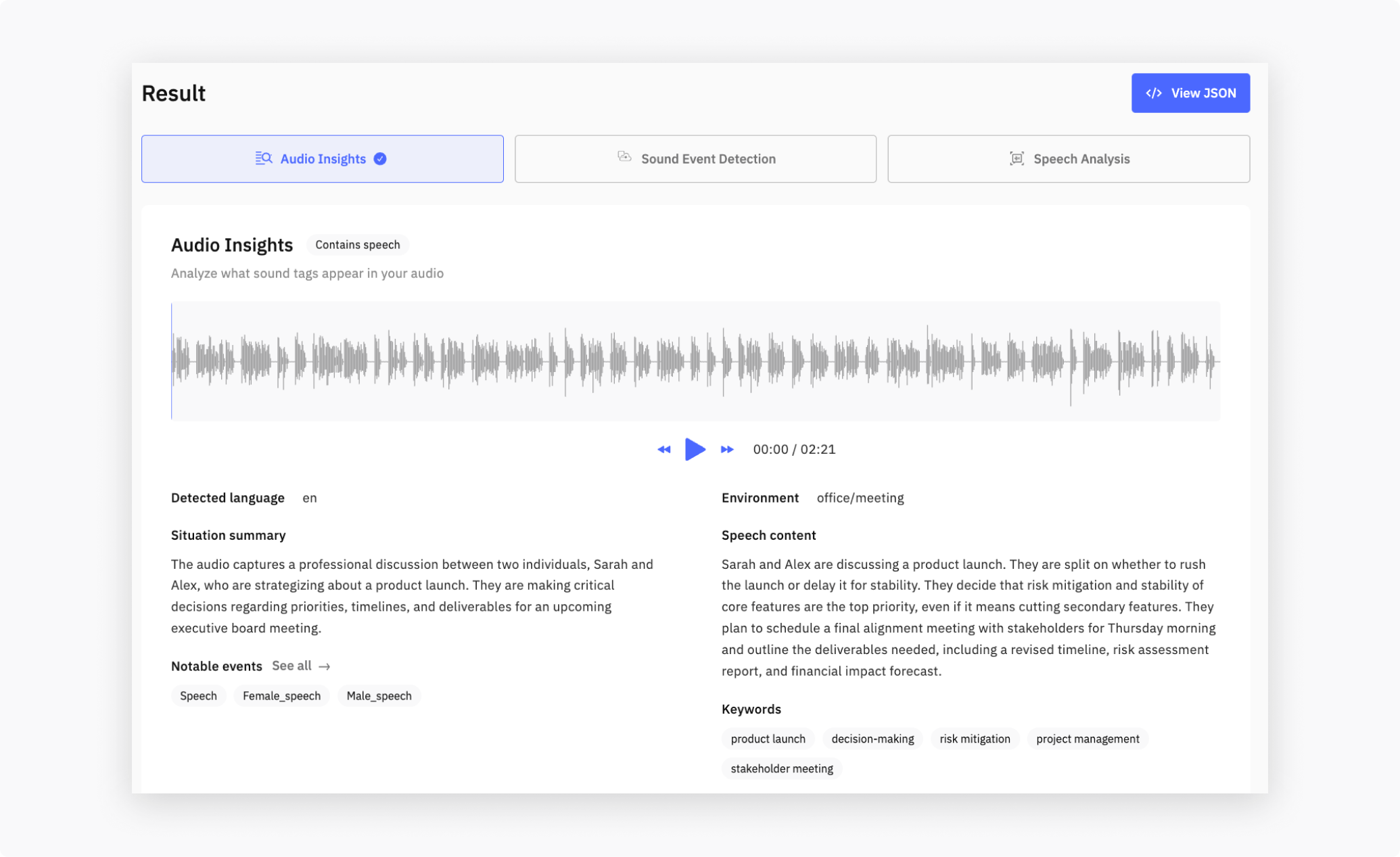
- When the job finishes, the Audio Insights tab in the result panel shows the rendered insights, with
notable_eventsandkeywordsas clickable chips.
Via the Python library (recommended)
Use the IntegratedApi helper from the cochl library. It handles authentication, file upload, and SSE consumption.
from cochl.sense import IntegratedApi, IntegratedApiOptions

api = IntegratedApi('YOUR_API_PROJECT_KEY')

job = api.analyze_file(
    'your_file.wav',
    IntegratedApiOptions(audio_insights=True),
)

# Block until the job finishes, then return the final result dict.
result = api.get_completed_result(job['job_id'])
print(result['audio_insights']['result']['situation_summary'])
Running this on a 30-second interview clip prints something like:
The audio captures an interview or discussion where Christian Bale reflects on his early career and notable film roles.
And result itself looks like:
{
  "audio_insights": {
    "status": "success",
    "result": {
      "contains_speech": true,
      "detected_language": "English",
      "primary_sound_environment": "Speech-dominated, likely an interview or discussion",
      "situation_summary": "The audio captures an interview or discussion where Christian Bale reflects on his early career and notable film roles.",
      "notable_events": ["Male_speech", "Speech"],
      "speech_content_summary": "The discussion centers on Bale's experience filming Empire of the Sun with Steven Spielberg and the influence of his father on his approach to acting.",
      "keywords": ["Christian Bale", "Empire of the Sun", "Spielberg", "acting", "early career"]
    }
  }
}
Audio Insights is built on top of the other two analyses, so it can’t run on its own — whenever audio_insights=True, both sound_event_detection=True and speech_analysis=True are required. Invalid combinations return 400. See the full validity matrix in Cloud API → Getting Started → Valid Service Combinations.
Advanced: stream progress yourself
get_completed_result blocks until the job finishes and hides the SSE stream. If you want to render a progress bar, display partial results as they arrive, or pipe events into your own UI, subscribe to the stream directly instead:
from urllib.request import Request, urlopen

from cochl.sense import IntegratedApi, IntegratedApiOptions


def main():
    # 1. Authenticate with the project key.
    api = IntegratedApi('YOUR_API_PROJECT_KEY')

    # 2. Choose which analyses to run.
    options = IntegratedApiOptions(
        sound_event_detection=True,
        speech_analysis=True,
        audio_insights=True,
    )

    # 3. Upload the file — the server enqueues a job and returns its id.
    job: dict = api.analyze_file('YOUR_AUDIO_FILE_PATH', options)
    if 'job_id' not in job:
        print('ERROR: analyze_file did not return a job_id')
        return
    job_id: str = job['job_id']

    # 4. Subscribe to the SSE stream. Each line is either:
    #      event: progress | partial_result | completed | error
    #      data:  <JSON payload>
    #    Empty lines separate events.
    request: Request = api.create_event_stream_request(job_id)
    with urlopen(request) as response:
        for line in response:
            line = line.decode('utf-8').strip()
            if line.startswith('event: ') or line.startswith('data: '):
                print(line)


if __name__ == '__main__':
    main()
Use this pattern only when you actually need progress events. For 90% of cases—“upload, wait, get the dict”—get_completed_result(job_id) is shorter and does the same SSE handling for you under the hood.
3. When to use Audio Insights
Audio Insights is the right tool when you need to:
- Index a large archive of recorded audio so it’s searchable by topic, not just by raw transcript
- Triage—quickly tell whether a file is worth a deeper review (a meeting recording vs. silence, a security clip vs. ambient noise)
- Generate human-readable previews for a UI showing many audio items, where a transcript would be too long
- Tag and categorize uploads automatically based on their content and environment
If you need precise per-event timing, use Sound Event Detection directly. If you need full text, use Speech Analysis. Audio Insights is the summary layer above those.
4. Combine with other analyses
Audio Insights internally relies on SED + Speech Analysis output, so enabling all three in one IntegratedApi call is the most efficient setup. The Dashboard does this by default. You only need separate requests if you want to skip one of the layers.