
Speech Analysis
Speech Analysis turns the speech in an uploaded audio file into structured data—what was said and who said it. It has two capabilities working together:
- Transcription—speech to text, segmented by speaker turn.
- Speaker Profile—populates
speaker_namewith a registered name when the voice matches a Custom Sound: Speaker Profile you’ve registered. Unknown voices keepspeaker_name: nulland you fall back to the diarization label (SPEAKER_00,SPEAKER_01, …).
Speech Analysis is available on Cloud API projects only.
1. Transcription output
Transcription returns one segment per uninterrupted speaker turn. A 30-second clip with two speakers trading off might produce ten segments of varying length, not 30 one-second chunks. Inside the Integration API response it appears under the speech_analysis key:
{
  "speech_analysis": {
    "status": "success",
    "results": [
      {
        "speaker": "SPEAKER_00",
        "speaker_name": null,
        "speaker_score": null,
        "transcript": "I've never enjoyed challenging high-profile roles.",
        "start_time": "00:00.00",
        "end_time": "00:05.27",
        "start_time_sec": 0.0,
        "end_time_sec": 5.27
      },
      {
        "speaker": "SPEAKER_01",
        "speaker_name": "Christian_Bale",
        "speaker_score": 0.41,
        "transcript": "But the directing pulled me in.",
        "start_time": "00:05.34",
        "end_time": "00:07.91",
        "start_time_sec": 5.34,
        "end_time_sec": 7.91
      }
    ]
  }
}
| Field | Meaning |
|---|---|
speaker | Diarization label (SPEAKER_00, SPEAKER_01, …). Stable within a single file; not stable across files. |
speaker_name | Registered profile name when this voice matches a Custom Sound: Speaker Profile, otherwise null. |
speaker_score | Similarity score against the matched profile (range 0.0–1.0; higher is more confident). null when speaker_name is null. |
transcript | The recognized text for this turn. |
start_time, end_time | Segment boundaries as a string — MM:SS.SS (or HH:MM:SS.SS for files ≥ 1 hour). For display only. |
start_time_sec, end_time_sec | Segment boundaries in seconds (float). Use these for math. |
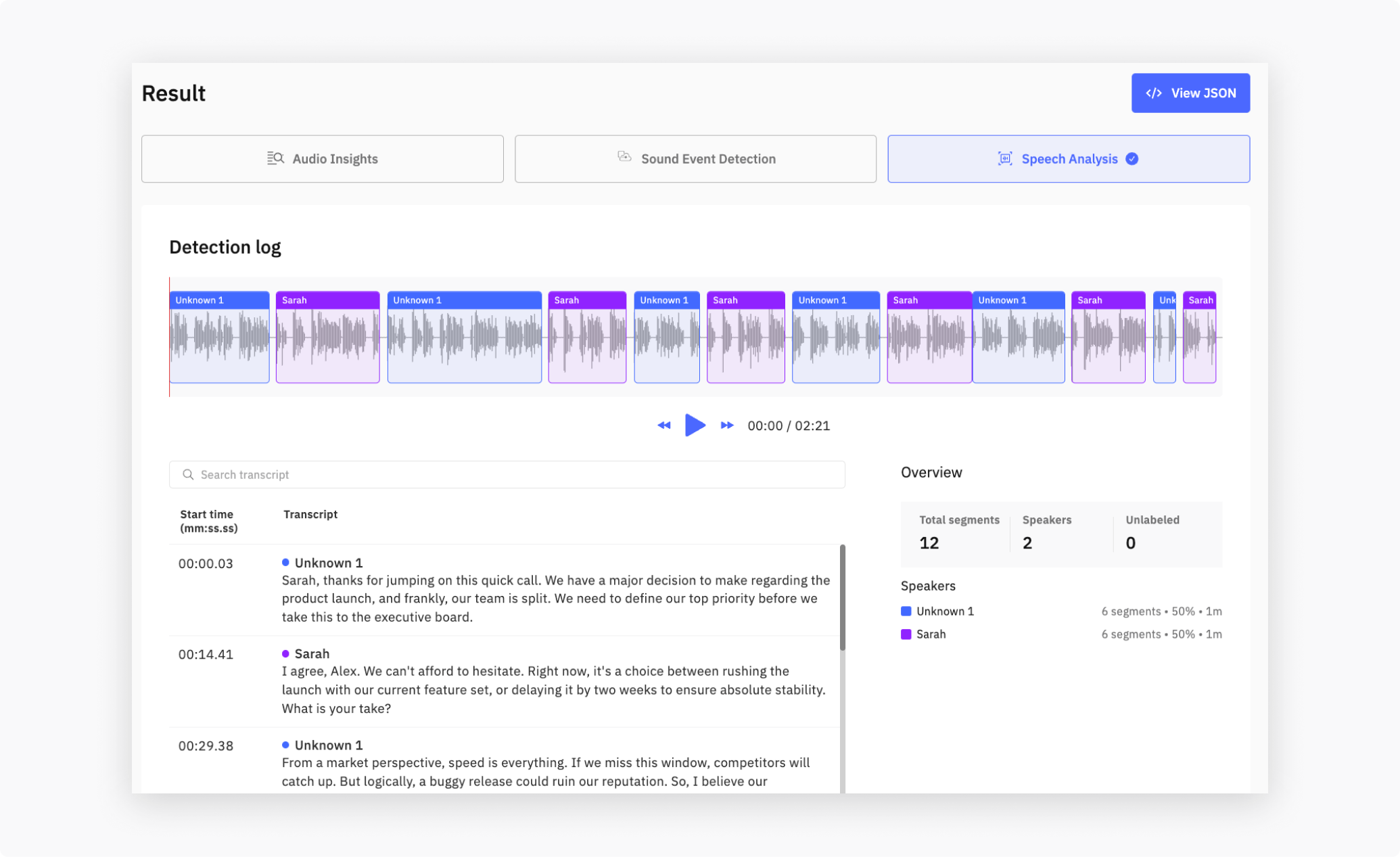
In the Dashboard’s Speech Analysis tab, those segments appear in a scrollable log with per-speaker color coding. Clicking a segment seeks the audio player to that point.
2. Supported languages
Transcription auto-detects the spoken language and returns the English name in detected_language. 100 languages are supported.
"detected_language": "English"
Most-used: en English, zh Chinese, ja Japanese, ko Korean, es Spanish, de German, fr French, pt Portuguese, ru Russian, ar Arabic, hi Hindi, it Italian, vi Vietnamese, id Indonesian, th Thai, tr Turkish.
Code-switching
When a single recording mixes more than one language — bilingual speakers, Korean speakers borrowing English terms, voiceovers that switch tracks — Cochl.Sense reports every primary language it detects, comma-separated:
"detected_language": "Korean, English"
You don’t need to opt in. The detection runs automatically and returns either a single language name or a comma-separated list, depending on what the recording contains.
Full language list (100)
af Afrikaans, am Amharic, ar Arabic, as Assamese, az Azerbaijani, ba Bashkir, be Belarusian, bg Bulgarian, bn Bengali, bo Tibetan, br Breton, bs Bosnian, ca Catalan, cs Czech, cy Welsh, da Danish, de German, el Greek, en English, es Spanish, et Estonian, eu Basque, fa Persian, fi Finnish, fo Faroese, fr French, gl Galician, gu Gujarati, ha Hausa, haw Hawaiian, he Hebrew, hi Hindi, hr Croatian, ht Haitian Creole, hu Hungarian, hy Armenian, id Indonesian, is Icelandic, it Italian, ja Japanese, jw Javanese, ka Georgian, kk Kazakh, km Khmer, kn Kannada, ko Korean, la Latin, lb Luxembourgish, ln Lingala, lo Lao, lt Lithuanian, lv Latvian, mg Malagasy, mi Maori, mk Macedonian, ml Malayalam, mn Mongolian, mr Marathi, ms Malay, mt Maltese, my Burmese, ne Nepali, nl Dutch, nn Norwegian Nynorsk, no Norwegian, oc Occitan, pa Punjabi, pl Polish, ps Pashto, pt Portuguese, ro Romanian, ru Russian, sa Sanskrit, sd Sindhi, si Sinhala, sk Slovak, sl Slovenian, sn Shona, so Somali, sq Albanian, sr Serbian, su Sundanese, sv Swedish, sw Swahili, ta Tamil, te Telugu, tg Tajik, th Thai, tk Turkmen, tl Tagalog, tr Turkish, tt Tatar, uk Ukrainian, ur Urdu, uz Uzbek, vi Vietnamese, yi Yiddish, yo Yoruba, yue Cantonese, zh Chinese.
3. Speaker Profile
A Speaker Profile is a voice fingerprint you create by uploading or recording audio samples of one person. Once registered, Cochl.Sense matches that profile in any new upload and exposes the registered name in speaker_name (with a similarity in speaker_score).
Use Speaker Profiles when you need:
- Meeting and interview transcripts that name participants automatically.
- Searchable archives where you can jump to “everything spoken by Anna”.
- Per-speaker analytics—talk time, turn counts, etc.
To register a profile, see Custom Sound: Speaker Profile.
4. Run Speech Analysis
Via the Dashboard
- Open your Cloud API project on the Dashboard.
- Go to the Upload tab.
- Drop your file. Enable Speech Analysis (and any other analyses you want).
- When the job completes, open the Speech Analysis tab in the result panel to see the transcript and speaker breakdown.
Via the Python library (recommended)
Use the IntegratedApi helper from the cochl library.
from cochl.sense import IntegratedApi, IntegratedApiOptions

api = IntegratedApi('YOUR_API_PROJECT_KEY')

job = api.analyze_file(
    'your_file.wav',
    IntegratedApiOptions(speech_analysis=True),
)

result = api.get_completed_result(job['job_id'])
for seg in result['speech_analysis']['results']:
    label = seg['speaker_name'] or seg['speaker']
    print(f"[{seg['start_time_sec']:.2f}–{seg['end_time_sec']:.2f}] "
          f"{label}: {seg['transcript']}")
Running this on a 30-second interview clip with two speakers prints something like:
[ 0.00– 4.32] SPEAKER_00: So, growing up, your father had a really strong influence on you.
[ 4.60– 8.91] Christian_Bale: Yeah, he taught me to never settle for the obvious choice.
[ 9.20–12.05] SPEAKER_00: And that carried into your acting?
[12.30–17.88] Christian_Bale: Absolutely. Every role becomes a question of what's underneath the surface.
And the corresponding result dict:
{
  "speech_analysis": {
    "status": "success",
    "results": [
      {
        "speaker": "SPEAKER_00",
        "speaker_name": null,
        "speaker_score": null,
        "transcript": "So, growing up, your father had a really strong influence on you.",
        "start_time": "00:00.00",
        "end_time": "00:04.32",
        "start_time_sec": 0.0,
        "end_time_sec": 4.32
      },
      {
        "speaker": "SPEAKER_01",
        "speaker_name": "Christian_Bale",
        "speaker_score": 0.41,
        "transcript": "Yeah, he taught me to never settle for the obvious choice.",
        "start_time": "00:04.60",
        "end_time": "00:08.91",
        "start_time_sec": 4.6,
        "end_time_sec": 8.91
      }
    ]
  }
}
The SPEAKER_01 segment carries speaker_name: "Christian_Bale" because a profile with that name was registered ahead of time via Custom Sound: Speaker Profile. Unmatched turns leave speaker_name and speaker_score as null, and the generic speaker label (e.g. SPEAKER_00) is what you fall back to for display.
Set sound_event_detection=True in the same IntegratedApiOptions to also detect non-speech events. Audio Insights can be added on top, but it requires both Speech Analysis and Sound Event Detection to be enabled — see Cloud API → Getting Started → Valid Service Combinations for the full validity matrix.
Advanced: stream progress yourself
get_completed_result blocks until the job finishes. If you want to render a progress bar or display partial results as they arrive, subscribe to the SSE stream directly:
from urllib.request import Request, urlopen

from cochl.sense import IntegratedApi, IntegratedApiOptions


def main():
    # 1. Authenticate with the project key.
    api = IntegratedApi('YOUR_API_PROJECT_KEY')

    # 2. Speech Analysis only — set other flags True to combine.
    options = IntegratedApiOptions(speech_analysis=True)

    # 3. Upload the file — the server enqueues a job and returns its id.
    job: dict = api.analyze_file('YOUR_AUDIO_FILE_PATH', options)
    if 'job_id' not in job:
        print('ERROR: analyze_file did not return a job_id')
        return
    job_id: str = job['job_id']

    # 4. Subscribe to the SSE stream. Each line is either:
    #      event: progress | partial_result | completed | error
    #      data:  <JSON payload>
    request: Request = api.create_event_stream_request(job_id)
    with urlopen(request) as response:
        for line in response:
            line = line.decode('utf-8').strip()
            if line.startswith('event: ') or line.startswith('data: '):
                print(line)


if __name__ == '__main__':
    main()
Use this pattern only when you need to react to progress events as they arrive. For “upload, wait, get the dict”, get_completed_result(job_id) is shorter and handles the SSE plumbing for you.
5. Export results
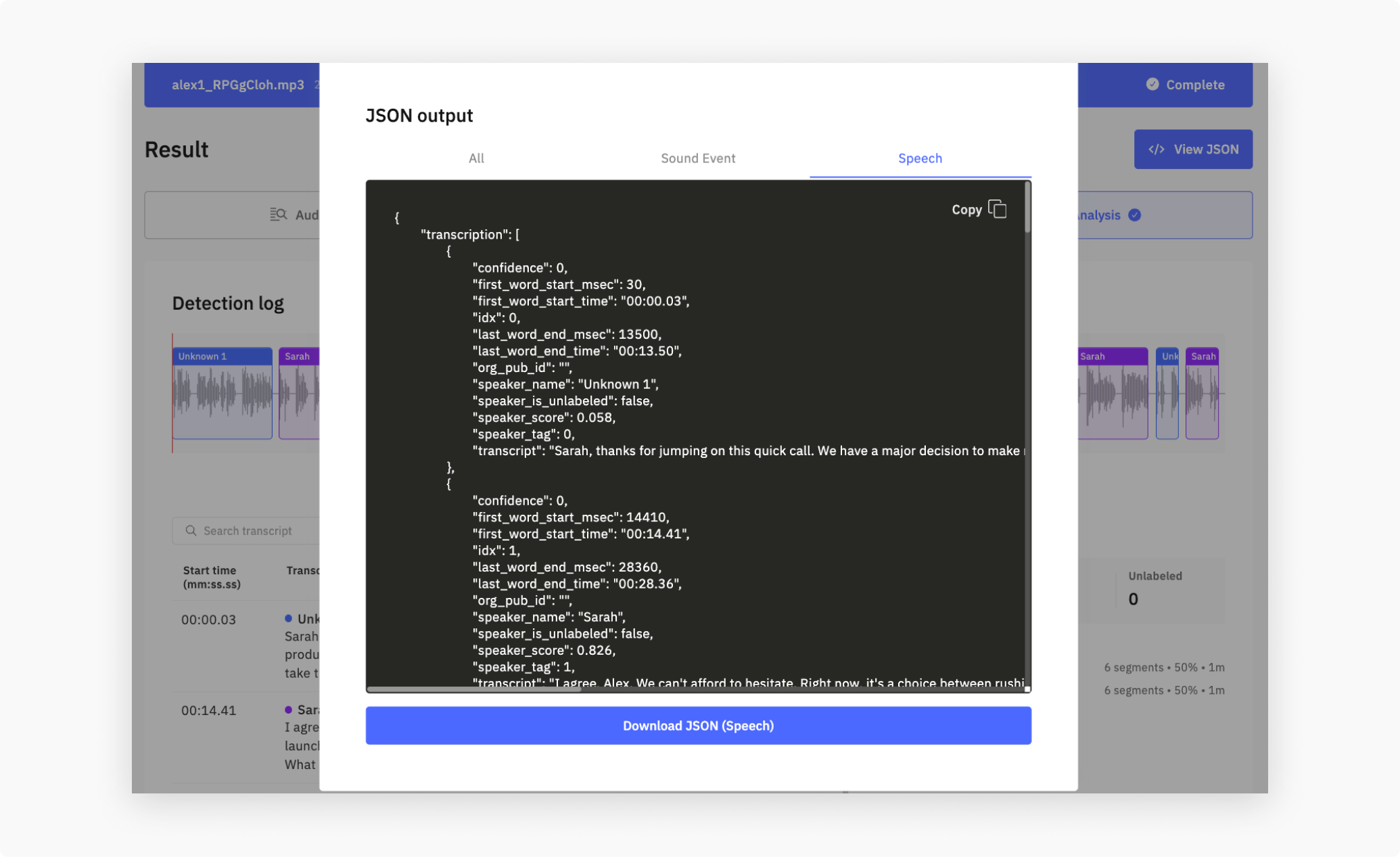
In the Dashboard result view, the View JSON button (top-right) downloads the full payload. You can choose:
- Combined—Audio Insights + SED + Speech Analysis in one file
- Sound Event Detection only
- Speech Analysis only
6. Best practices
- For best transcription accuracy, use 16 kHz or higher sample rate and minimize background music.
- Speaker matching works best when the registered profile recording conditions (microphone, room) are similar to the upload’s.
- Unknown speakers carry
speaker_name: nulland get a stable diarizationspeakerlabel (SPEAKER_00,SPEAKER_01, …) within a single file. The label does not persist across files —SPEAKER_00in two different uploads is not necessarily the same person.
See also
- Custom Sound: Speaker Profile—register voices so they appear in
speaker_nameinstead of being left asnull - Audio Insights—high-level scene summary, which uses transcript context when speech is present
- Sound Event Detection—detect non-speech events in parallel