
Sound Event Detection
Sound Event Detection (SED) is the on-device sound recognition capability of the Cochl.Sense Edge SDK. It runs entirely on the edge—no cloud round-trip, no audio leaves the device—and produces the same tag-and-probability output as the Cloud API equivalent.
This page covers SED behavior in the Edge SDK. For installation and your first prediction, start with Getting Started and Samples.
1. How it works
The SDK ships a TensorFlow Lite model that runs on CPU by default and can be delegated to GPU/NPU on supported devices. It processes audio in fixed-size windows (the “window size”) with a configurable stride (the “hop size”) and emits a result per window.
Each result includes the predicted tags and their probabilities, plus the time interval of the window. Adjacent windows can be merged into a single event using Result Summary.
2. Choose your tags at project creation
Unlike the Cloud API—which detects every official tag by default—an Edge SDK project ships with only the tags you select when creating the project on the Dashboard. The on-device model is built for that exact tag subset, which keeps the model lean and inference fast on edge hardware.
What this means in practice:
- Pick the tags you actually need at project creation. Browse the catalog on the Sound Tags page first.
- To add or remove tags later, edit the tag list on the project page in the Dashboard. The next time your app initializes the SDK, it downloads the updated model.
- If the sound you care about isn’t covered by built-in tags, train a custom one via Custom Sound: Sound Events. Training runs on Cochl’s infrastructure; once it finishes the new tag appears in the Custom Sound sub-tab of the tag picker and the SDK downloads the updated model on next initialization.
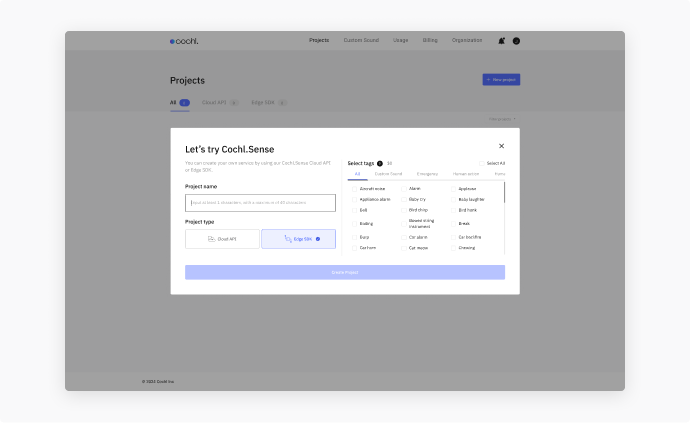
The catalog covers 100+ tags across eight categories — a taste of what’s in each:
The tags active on the device are the subset selected when the project was created; review or change them on your project page.
3. Two modes: file vs. stream
| Mode | Source | Use case |
|---|---|---|
| File mode | wav / mp3 on disk | Batch processing, testing, post-hoc analysis |
| Stream mode | Live audio buffer (mic, network) | Real-time monitoring, alerts |
Both modes return the same result for each inference window. C++ and Python receive a typed value and can format it as needed; the samples output JSON:
{
  "start_time": 3.0,
  "end_time": 5.0,
  "prediction_time_ms": 24,
  "tags": [
    {
      "name": "Siren",
      "probability": 0.81
    }
  ]
}
| Field | Meaning |
|---|---|
start_time | Start of this window, in seconds. |
end_time | End of this window, in seconds. |
prediction_time_ms | Time the SDK took to process the window, in milliseconds. |
tags[].name | Detected tag, e.g. Siren. |
tags[].probability | Confidence for that tag, 0.0–1.0. |
tags is [] for silence, or when nothing crossed its sensitivity threshold — still a successful result, not an error.
"probability": "0.81") and named the latency field prediction_time. Cast the numeric values before comparing them, or upgrade to v1.6.1 — see the release notes.The result carries three more fields the samples do not print: timestamp, summaries and error. See Samples for the complete schema and per-language code.
4. Tune detection behavior
The SDK reads config.json on initialization. Three knobs control SED behavior:
- Sensitivity control—global and per-tag; levels are
VERY_LOW,LOW,NORMAL,HIGH,VERY_HIGH(strings; numbers are ignored). - Result summary—merges adjacent same-tag windows. (In stream mode only
default_interval_marginapplies — per-tag margins are ignored — and the merge happens after each prediction.) - Audio preprocessor—optional
audio_activity_detection(skip silent windows) andautomatic_gain_control(normalize quiet/loud input).
Full schema and field-by-field reference: Advanced Configurations.
5. Performance
SED model accuracy and latency vary by device. Per-platform measurements are in Benchmark.
Current Edge SDK model has improved Average Precision (AP) by approximately 17% over the previous release, with the biggest gains on small target sounds and noisy environments. See Release Notes for the version history.
6. Limitations
- Sample rate — the model runs at 22,050 Hz, and the input must be at or above that rate. Lower rates are not supported: file mode rejects a below-rate file with a resampling error, and stream mode rejects the pushed chunk. Higher rates are automatically downsampled to the model rate.
- Short files — a file shorter than the model’s window is still processed; the SDK zero-pads the final (or only) window, so short and trailing audio is never dropped. Only an empty file is rejected.
- The SDK requires an outbound network connection on first run to download the model and verify license. After initial setup, prediction is fully offline; license verification re-runs periodically.