
Custom Sound: Sound Events
Custom Sound: Sound Events lets you train a sound tag that isn’t in our built-in catalog. Upload labeled audio clips, our pipeline fine-tunes a model on your data, and the new tag becomes available to your Edge SDK projects.
This feature is available for Edge SDK projects only. The Cloud API doesn’t support Custom Sound: Sound Events. If you need custom voice identification on the Cloud API, see Custom Sound: Speaker Profile instead.
For a full list of built-in tags before training your own, see Sound Tags.
1. Prepare your training data
1.1 Sort your files
Sort your data into this layout:
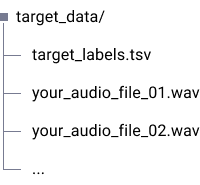
target_data/— the top-level folder containing everything.target_labels.tsv— metadata for each clip. Download the template.
| Column | Description |
|---|---|
| File name | Audio filename used as training data. |
| Start time (sec) | Start of the segment to use. ≥ 0 and < End time. |
| End time (sec) | End of the segment. ≤ File length. |
| File length (sec) | Total duration. Used to verify labels match the file. |
| Class name (optional) | Sound class name. Single class only. |
- All audio files (
wav,mp3,flac) sit directly intarget_data/, next totarget_labels.tsv.
Note
- Label Requirements: Your target_labels.tsv file must meet at least one of the following conditions:
- Contain 100 or more rows (labels).
- Have a total labeled duration of at least 2 minutes.
- Label Merging: Labels that overlap or are separated by a very short interval (less than 0.1 seconds) will be automatically merged into a single label. The label requirements are checked against these merged labels.
- Training Time: Training is expected to take approximately 30 minutes if there is no queue.
Good data preparation practices
Here are a list of considerations from our researchers that can greatly improve the quality of your dataset:
- Recording environment consistency Was the data recorded with the actual service equipment? (e.g., the actual microphone or recorder)
- Data Diversity Your target_labels.tsv file must meet at least one of the following conditions:
- Are all collected variations within the intended scope of the target sound? (e.g. Only the specific alarm you want to detect).
- Does the data include variations in distance, direction, and intensity?
- Does the data include various real-world background noises? (e.g. office noise, traffic, etc)
- Negative samples Are there a sufficient amount of 'unlabeled' portions? These portions, referred to as 'negative samples', should only contain various background noises without the target sound.
- Labelling Accuracy
- Do the label start/end points match the sound precisely? Try to minimize silence before/after the sound.
- Are sounds with gaps of more than 0.5s separated into distinct labels to clearly separate sound events?
1.2 Zip it
Create a zip of the target_data folder.
2. Train the tag
You can train through the Dashboard or through the Python library. Either way, training runs on Cochl’s infrastructure.
2.1 Via the Dashboard
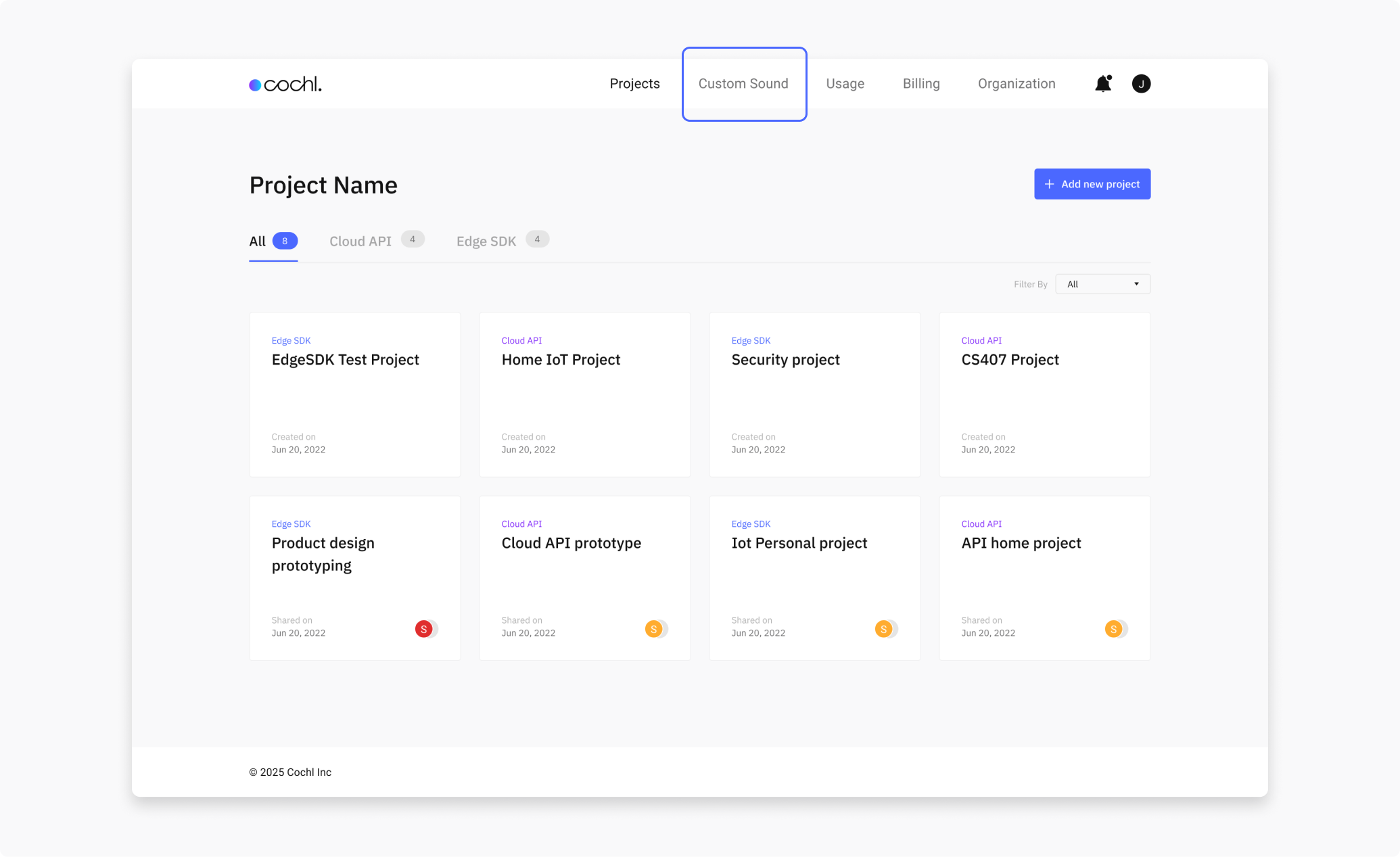
(1) Open the “Custom Sound” tab
Log in to the Cochl.Sense Dashboard and open the Custom Sound tab on the Projects page. Switch to the Sound Events sub-tab.
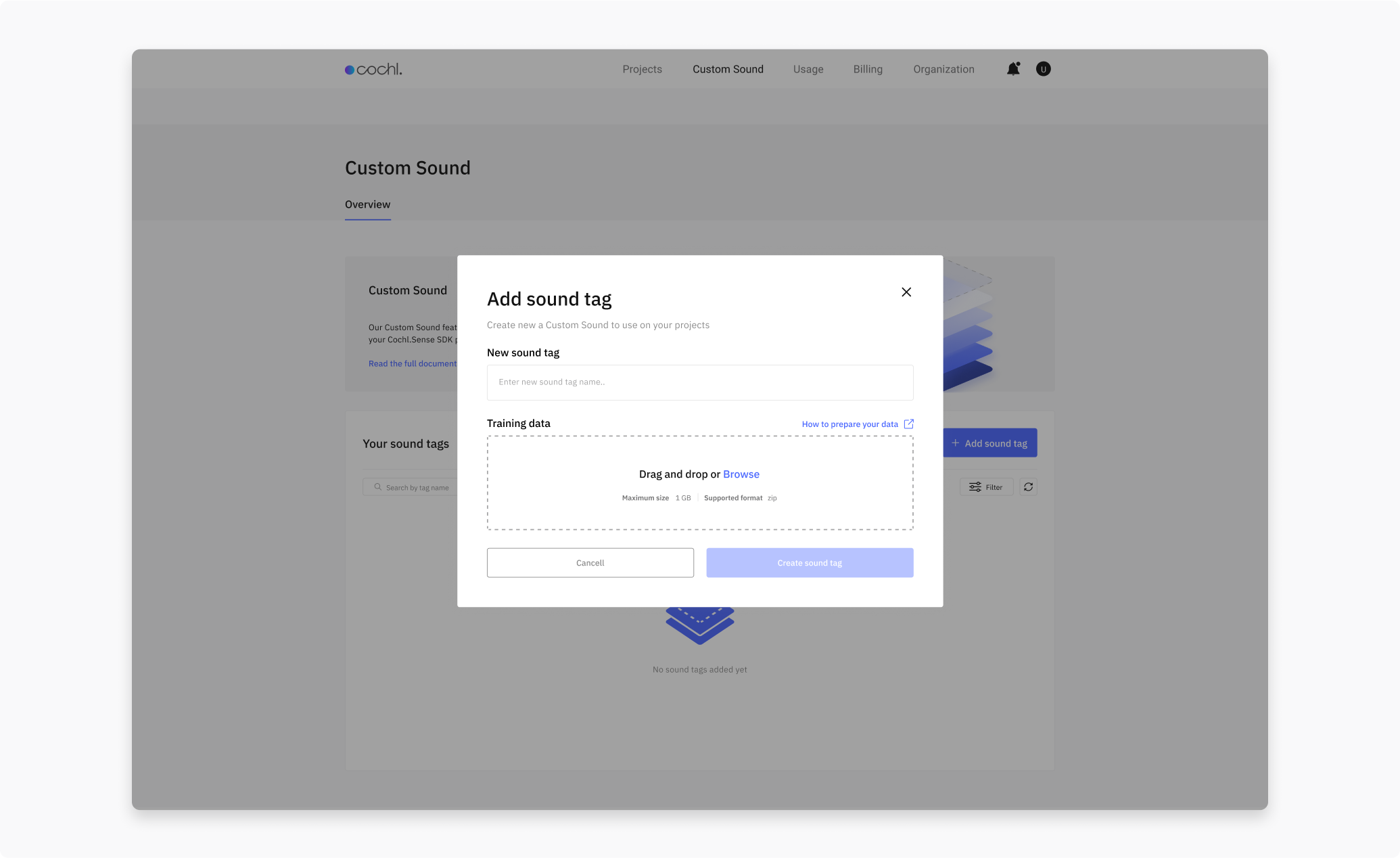
(2) Create a new tag
Click Add sound tag, enter a name, and drop your target_data.zip under Training data.
(3) Training starts
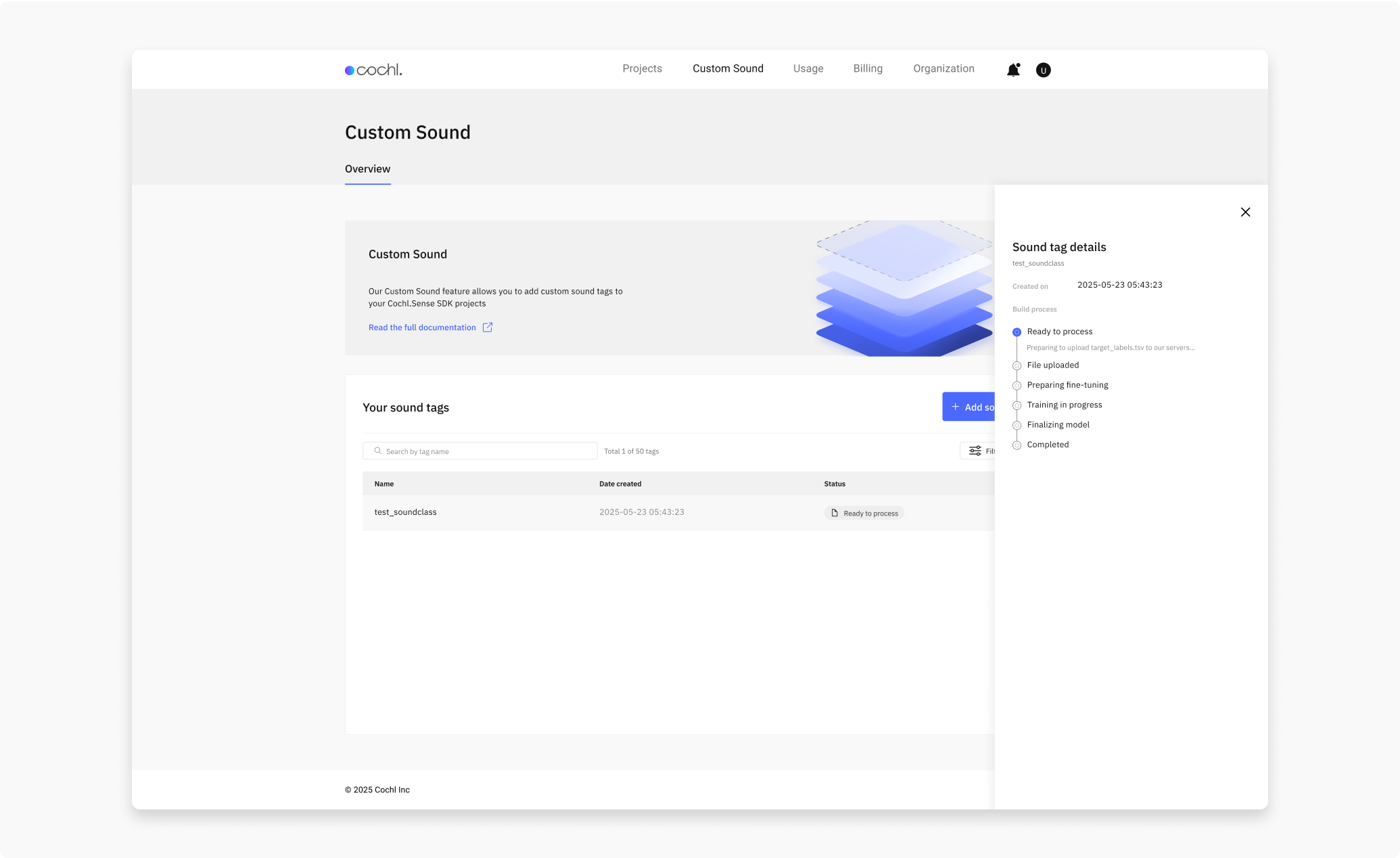
If validation passes, training runs on our infrastructure. You can monitor progress on the Dashboard:
| Status | Meaning |
|---|---|
UPLOADED | File received. |
FINE_TUNING_PREPARED | Ready to train. |
EPOCH_IN_PROGRESS | Training. Current and total epoch shown on the Dashboard. |
CONVERT_IN_PROGRESS | Converting to a deployable model. |
COMPLETED | Tag is ready to use. |
(4) Email on completion
You’ll get an email when training succeeds or fails.
2.2 Via the Python library
(1) Install the Cloud API library
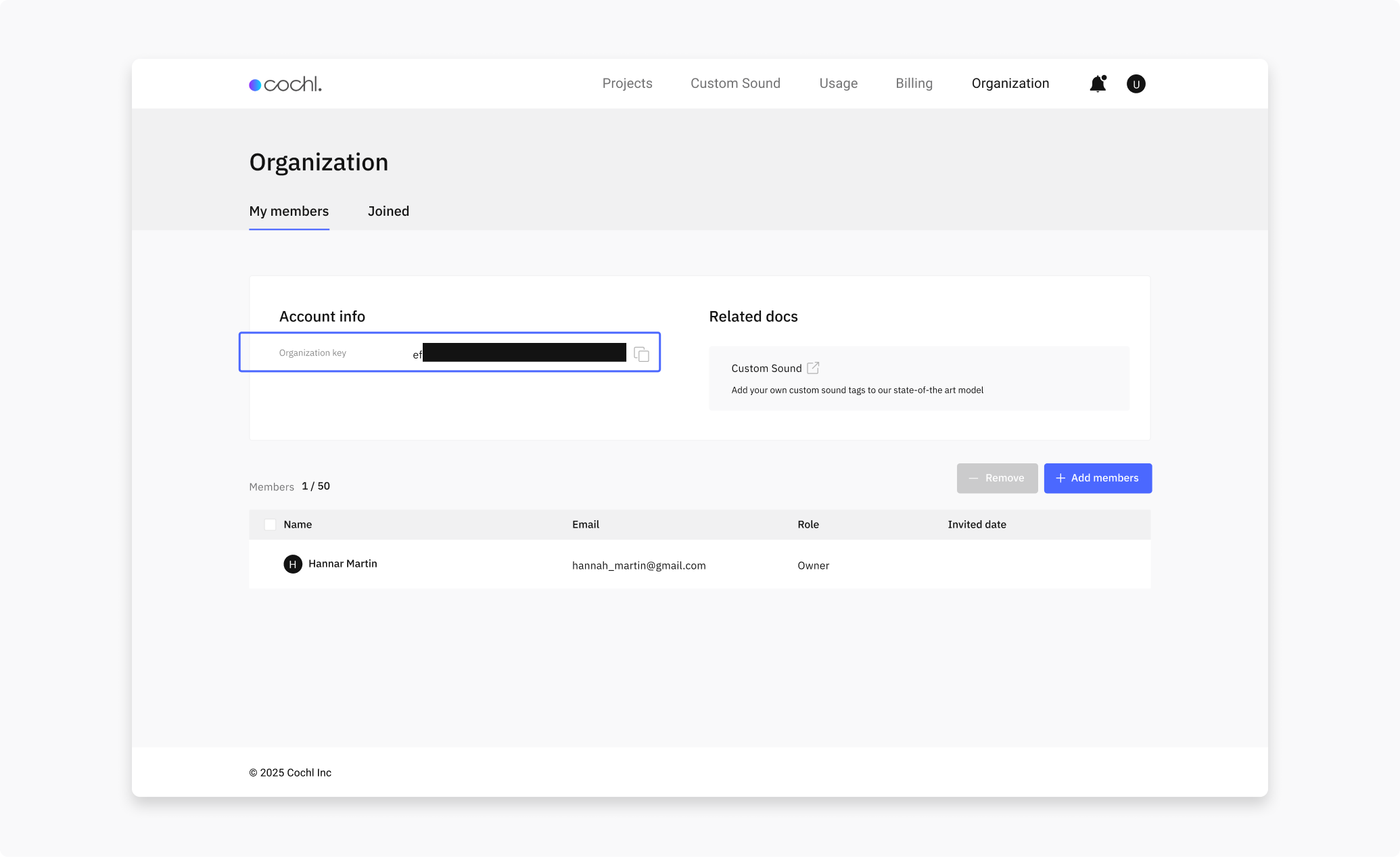
The Python library is shared with the Cloud API — install it by following Cloud API → Getting Started. You don’t need a Cloud API project to use it for Custom Sound uploads; you only need your organization key.
(2) Upload your dataset
import cochl.sense as sense
from typing import Optional

api_config = sense.APIConfig()
api_config.custom_sound = True

custom_sound = sense.CustomSound(
    'YOUR_ORGANIZATION_KEY',
    api_config=api_config,
)

cs_error: Optional[dict] = custom_sound.upload(
    custom_sound_tag='YOUR_CUSTOM_SOUND_TAG',
    zip_file_path='YOUR_ZIP_FILE_PATH',
)

if cs_error is None:
    print('successfully uploaded')
else:
    print(cs_error)
Find YOUR_ORGANIZATION_KEY on the Organization tab of the Dashboard.
More runnable scripts and the library source can be found here.
3. Use the trained tag in your Edge SDK project
3.1 Select the tag in your Edge SDK project
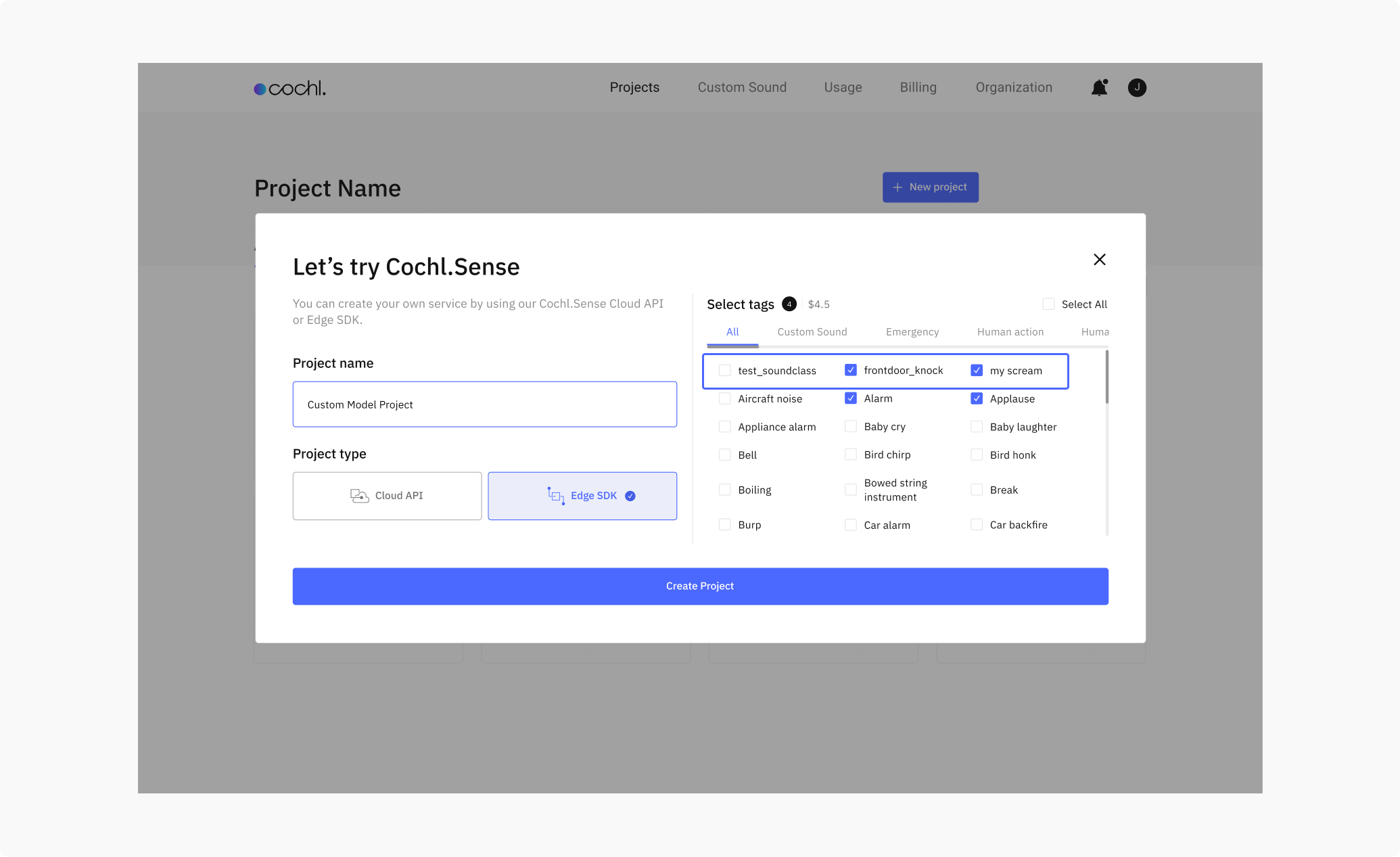
Once training reaches COMPLETED, open your Edge SDK project on the Dashboard and add the new tag from the Custom Sound sub-tab in the tag list. You can include multiple custom tags in one project — the SDK delivers a unified model.
3.2 Restart your app to pick up the updated model
The SDK downloads the updated model on the next initialization that matches one of these conditions:
- SDK v1.2.0 and above: restart your app — the SDK checks for and pulls the new model automatically.
- SDK v1.1.0 and below: delete the locally cached model (under
app_pathfrom yourconfig.json), then restart. The SDK re-downloads.
3.3 Predict
A custom tag comes back exactly like any built-in one, in the same result schema — only name differs:
{
  "start_time": 1.0,
  "end_time": 3.0,
  "prediction_time_ms": 23,
  "tags": [
    {
      "name": "YOUR_CUSTOM_SOUND_TAG",
      "probability": 0.87
    }
  ]
}
Nothing in your code needs to change: a custom tag is read from tags[] like any other.
4. Troubleshooting
If upload fails, walk through this checklist:
- Audio formats are
wav,mp3,m4a,flac, orogg. target_labels.tsvis inside the zip.target_labels.tsvheader and column types match the template.- Every filename in
target_labels.tsvexists in the zip. - No corrupted
.wavfiles.
If a tag’s training status stalls or hits FAILED, re-upload or contact support@cochl.ai.
5. Limitations
- Edge SDK only. Custom Sound: Sound Events tags do not run on Cloud API.
- Project-scoped. All devices using the same project key share the same set of custom tags.
- First-run download. The model download happens the first time the SDK initializes after a new tag is added. Plan for a small one-time download on each device.
See also
- Sound Event Detection (Edge SDK)—feature overview
- Custom Sound: Speaker Profile—the other Custom Sound type, on the Cloud API side
- Resources—model versioning details